01
GPU
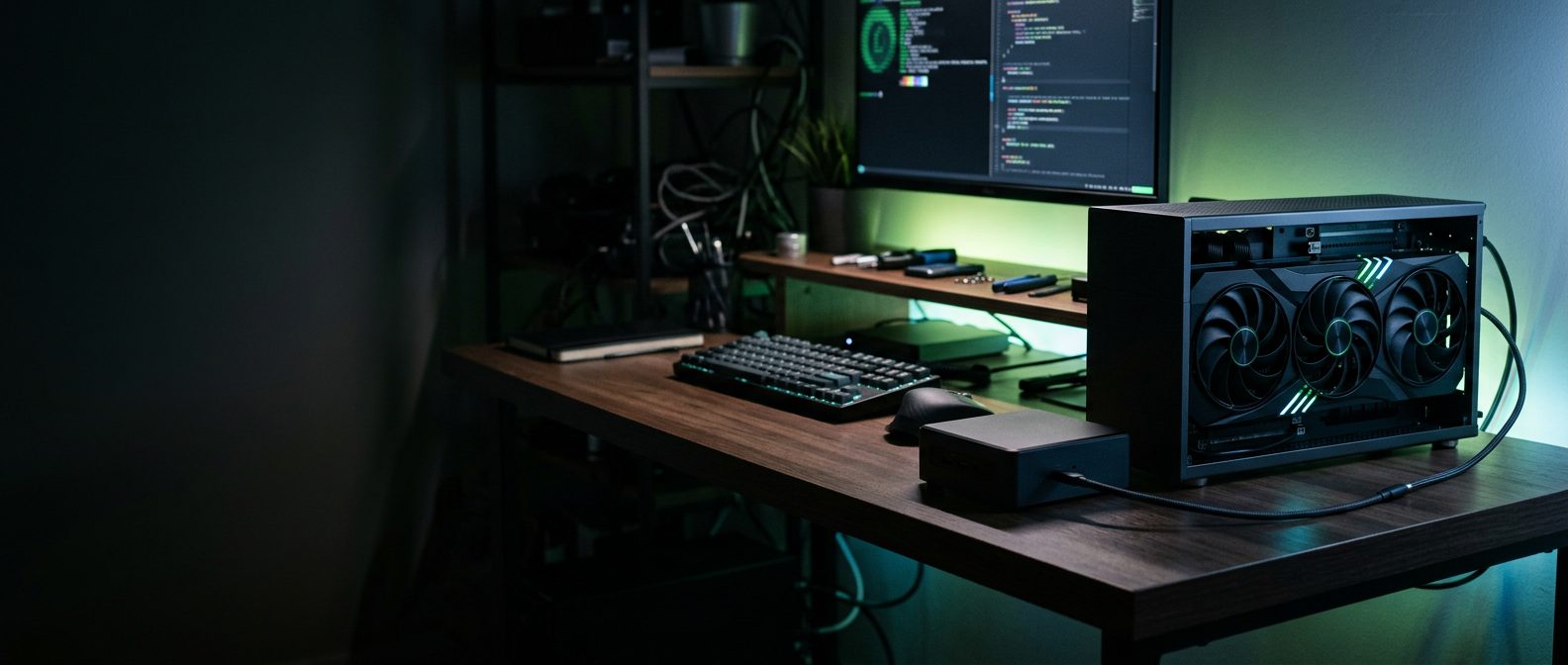
Get the eGPU ready
Keep the eGPU always connected and install a current NVIDIA driver. Then check it in PowerShell:
nvidia-smiIf it lists the RTX 4070 Ti, the driver is working.
Ben's working guide · progress tracker
Hermes Agent v0.22.5 on the Windows mini PC and RTX 4070 Ti eGPU, running local models, then wired into Home Assistant.
The rig
AOOSTAR GEM12+ Pro
Ryzen 7 PRO 8845HS, running Windows.
Confirmed
ASUS TUF RTX 4070 Ti
External GPU in an AOOSTAR EG02 dock (TB5 + OcuLink). The dock has no drive slot.
Confirmed
12 GB
Plain 4070 Ti, not the Ti Super.
Confirmed
2× 1 TB NVMe · both slots full
Exactly 2× M.2 2280 PCIe 4.0 x4 slots (8 TB max), no SATA bay. OcuLink doesn't use an M.2 slot. See the storage options.
v0.22.5
Progress
Step by step
01
GPU
Keep the eGPU always connected and install a current NVIDIA driver. Then check it in PowerShell:
nvidia-smiIf it lists the RTX 4070 Ti, the driver is working.
02
Install · next
Hermes will be always on, so it runs fully walled off from Ben's Windows files.
docker-compose.yml:services:
hermes:
image: nousresearch/hermes-agent:stable
container_name: hermes
restart: unless-stopped
command: gateway run
ports:
- "127.0.0.1:9119:9119"
volumes:
- hermes-data:/opt/data
environment:
- HERMES_DASHBOARD=1
- HERMES_DASHBOARD_BASIC_AUTH_USERNAME=ben
- HERMES_DASHBOARD_BASIC_AUTH_PASSWORD=${HERMES_PW}
- HERMES_DASHBOARD_BASIC_AUTH_SECRET=${HERMES_SECRET}
shm_size: 1g
deploy:
resources:
limits:
memory: 4G
cpus: "2.0"
volumes:
hermes-data:Put HERMES_PW and HERMES_SECRET in a .env file next to the compose file.
docker compose run --rm hermes setup
docker compose up -dhttp://localhost:9119. Sign in with the basic-auth user.Data lives in the Docker volume hermes-data, not a Windows folder. That also avoids SQLite corruption on Windows bind mounts.
Local models: run Ollama on Windows so it uses the 4070 Ti directly. In setup, choose Custom endpoint with base_url http://host.docker.internal:11434/v1 and at least 64K context.
Simpler but not isolated: the native Hermes Desktop installer from hermes-agent.nousresearch.com.
03
OpenClaw import
Setup already ran in step 2. The container can't see Windows, so first copy OpenClaw's folder in. Only that folder is exposed, nothing else from Windows.
docker cp <path-to-openclaw-folder> hermes:/opt/data/import/Then install the importers and do a dry run:
docker exec -it hermes hermes plugins install agent-importers
docker exec -it hermes hermes import-agent openclaw --dry-run
If it looks right, run it for real. --migrate-secrets brings the API keys across.
docker exec -it hermes hermes import-agent openclaw --migrate-secrets04
Local models
Sweet spot for 12 GB: 7–14B models at Q4, fully on the GPU.
Ollama runs on Windows, not in the container. Pull a model there, then pick it in Hermes Desktop (Settings > Providers) or with docker exec -it hermes hermes model. Pick the star or green rows.
Set at least 64K tokens of context:
--ctx-size 65536   # llama.cpp
-c 65536           # Ollama
Skip 27–35B models: they won't fit in 12 GB, spill into system RAM and run slowly. See model sizing.
05
Home Assistant
docker exec -it hermes hermes plugins install homeassistantCreate a long-lived access token in Home Assistant (profile > Security). Put HASS_TOKEN and HASS_URL in /opt/data/.env, and set watch_domains in /opt/data/config.yaml.
HASS_URL must be reachable from the container: http://homeassistant.local:8123 or the HA IP, or http://host.docker.internal:8123 if HA runs on the same PC.
Then restart. The gateway already runs, so there's no separate hermes gateway.
docker compose restart hermes06
Lock it down
Mostly done by step 2: Hermes already runs isolated in its container. Optional extras:
Egress proxy, to control what Hermes can reach online:
docker exec -it hermes hermes egress setup
docker exec -it hermes hermes egress start
Check the setup:
docker exec -it hermes hermes doctorModel sizing by VRAM
Those run fully on the GPU. 27–35B models won't fit; they spill into system RAM and run slowly.
| Model size | On disk | Fits |
|---|---|---|
| 7–8B Sweet spot | ≈ 5 GB | Fully on the GPU, comfortably |
| 14B | ≈ 9 GB | Fully on the GPU |
| 27–32B | ≈ 17–20 GB | Won't fit; spills into system RAM, runs slowly |
12 GB of VRAM: stick to 7–14B Q4 models. Ollama stores models on Windows, by default in C:\Users\<you>\.ollama\models. If space runs short, set the OLLAMA_MODELS environment variable to a folder on drive 2 or the USB SSD.
Storage plan
Two 1 TB NVMe drives fill both M.2 slots. There's no SATA bay, and the EG02 dock has no drive slot.
| Drive | Size | What goes on it | Status |
|---|---|---|---|
| Drive 1 Windows | 1 TB | Windows, filling with games | Filling up |
| Drive 2 NVMe slot 2 | 1 TB | Other OSes | Reserved |
Put the ~5 TB SATA SSD from the other gaming PC in a USB-C 10 Gbps enclosure. Near full SATA speed, fine for games and models.
Option
Swap one 1 TB NVMe for a larger one, up to 4 TB per slot.
Option
Make room on the Windows drive itself.
Option
None chosen yet.
Until there's more room:
Where things live
Config, .env, sessions, skills and memories all sit in the Docker volume, not a Windows folder.
/opt/data/.env/opt/data/config.yaml/opt/dataDocker Desktop on Windows keeps its WSL2 disk on C: by default. If space is tight, move it in Docker Desktop Settings > Resources.
Set a value directly:
docker exec -it hermes hermes config set ...Or open a shell in the container:
docker exec -it hermes bashRun from the compose folder to save the whole volume as a file:
docker run --rm -v hermes-data:/data -v ${PWD}:/backup alpine tar czf /backup/hermes-backup.tgz -C /data .Data persists in the volume.
docker compose pull && docker compose up -dIf something breaks
docker exec -it hermes hermes doctordocker exec -it hermes hermes modeldocker compose run --rm hermes setupdocker exec -it hermes hermes sessions listdocker exec -it hermes hermes --continuedocker exec -it hermes hermes gateway statusdocker logs hermes